How to Reset Ford Explorer Screen
As an Amazon Associate we earn from qualifying purchases.
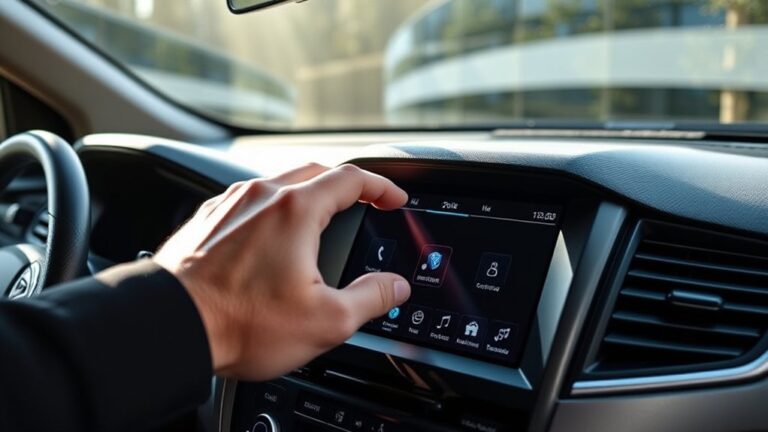
When your Ford Explorer screen freezes like a stuck compass, knowing how to reset Ford Explorer screen is essential to get it back on course. You can start with a quick soft reset to see if that resolves the issue.
If the display stays unresponsive, try a SYNC reset or hold down the power button for a few seconds. These steps often revive the screen without needing further action.
Should the screen remain blank after these attempts, disconnecting the battery may be the next step. The exact fix depends on the specific fault, so paying attention to the details is important.
Key Takeaways
- Hold the Ford Explorer power button or audio volume knob for 10 to 20 seconds to trigger a quick screen reboot.
- If the screen freezes, use the model’s soft reset controls for 10 to 15 seconds until it goes black and restarts.
- For a full reset, go to Settings, then General, and select Master Reset or Factory Reset.
- After any reset, test touch, audio, navigation, climate controls, and reconnect your phone if needed.
- If problems continue, check for software updates, battery voltage issues, or deeper hardware faults.
Common Causes of Ford Explorer Screen Freezes
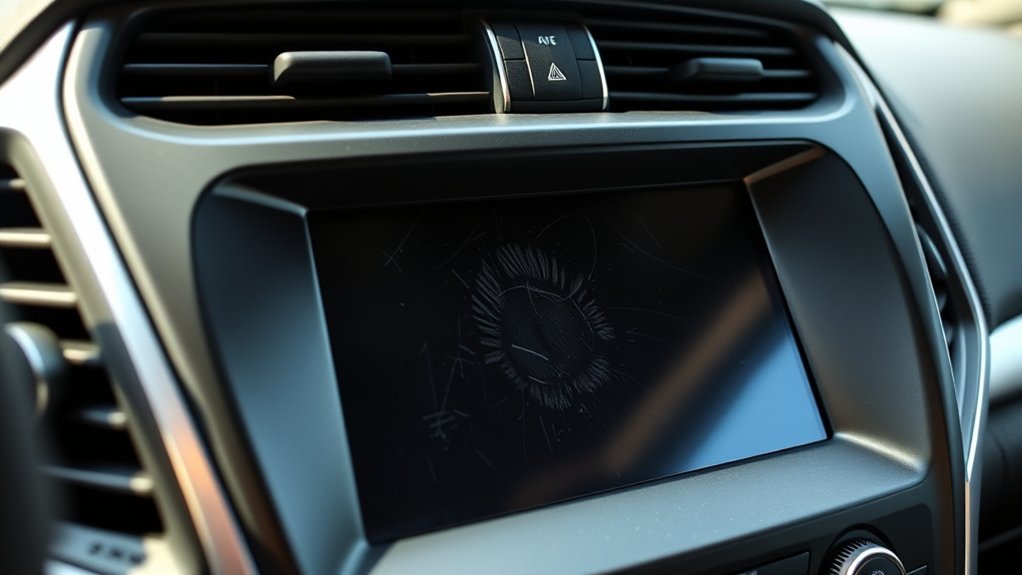
If your Ford Explorer screen freezes, you’re usually dealing with a software glitch, a temporary communication fault on the vehicle network, or an overloaded infotainment system. You may also see freezes when the module loads multiple apps, processes navigation data, or struggles with corrupted cache files.
Heat, low battery voltage, and unstable accessory power can worsen the issue because the display controller needs steady input. A poor connection between the touchscreen, head unit, or related modules can interrupt normal response.
In some cases, your driving ergonomics and dashboard layout make the screen seem unresponsive when glare, reach, or angle affects touch input. A freeze doesn’t always mean hardware failure; it often points to intermittent system instability that blocks commands, delays refreshes, or locks the interface until the software clears.
Try a Quick Soft Reset First
Start with a quick soft reset by pressing and holding the screen’s power button until the system shuts down and restarts. This power button reset often clears temporary glitches without changing your settings.
If the display is frozen, this is usually the fastest screen freeze fix to try first.
Power Button Reset
Before you try a full reset, press and hold the Ford Explorer’s power button for about 10 to 20 seconds until the screen goes black and the system restarts. This soft reset refreshes the module without changing settings, and it’s your fastest first step.
Keep your finger steady; don’t tap repeatedly. If the display returns normally, you’ve likely cleared a minor software glitch. Use the table below to verify the sequence and results.
| Step | Action | Result |
|---|---|---|
| 1 | Hold power button | Screen powers off |
| 2 | Release after restart | System reboots |
| 3 | Check display | Normal response |
| 4 | If needed, inspect screen calibration and display housing | Confirm hardware integrity |
If the panel still misbehaves, you can move on to deeper diagnostics later.
Screen Freeze Fix
When the Ford Explorer screen freezes, a quick soft reset is usually the fastest fix. You can restore normal operation without changing settings or data. Keep the vehicle in Park, then press and hold the power and seek-forward buttons until the display reboots.
If your model uses a different control layout, check the owner’s manual before retrying.
- Confirm the system isn’t responding to touch or buttons.
- Hold the correct controls for 10 to 15 seconds.
- Wait for the screen to go black and restart.
- Test audio, navigation, and climate functions after reboot.
This simple step supports screen maintenance and protects user experience by clearing minor software hangs. If the freeze returns, repeat once, then move to deeper troubleshooting.
Reset the Screen With SYNC
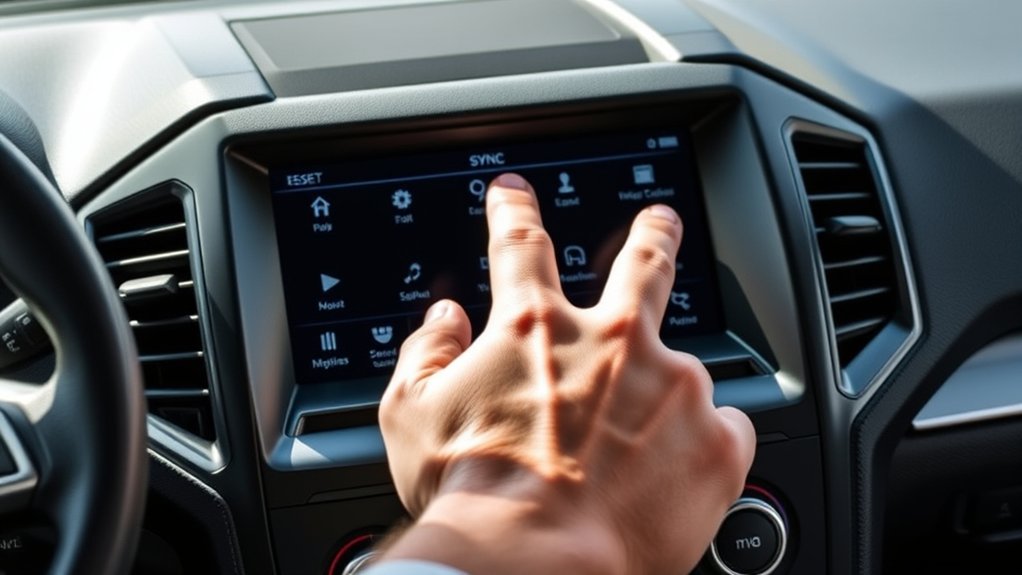
If your Ford Explorer’s SYNC screen freezes, glitches, or becomes unresponsive, you can reset it directly through the SYNC system. Use the touchscreen to open Settings, then tap General, and select Master Reset or Factory Reset, depending on your model year.
This clears stored sync issues and can restore normal operation without affecting display calibration settings in most cases. Confirm the prompt when SYNC asks for authorization, then wait for the system to erase data and reboot. Don’t interrupt the process or switch ignition modes.
After the reset, allow SYNC to reload completely, reconnect your phone, and test the screen response. If the interface still lags or fails to register input, you may need to repeat the reset or investigate a deeper software fault.
Reset the Screen Using the Power Button
To reset the Ford Explorer screen with the power button, press and hold the audio system power/volume knob until the display turns off and the system restarts. This manual reset button action forces a controlled power cycle and often clears minor glitches.
Press and hold the audio system power/volume knob until the display turns off and restarts.
If the screen stays frozen, repeat the hold for several seconds, then release. Follow these steps precisely:
- Keep the vehicle in Park.
- Locate the audio system power/volume knob.
- Press and hold it until the screen goes dark.
- Wait for the Ford SYNC screen to reboot.
You don’t need extra input unless the unit fails to respond. After the reset, verify that audio, navigation, and touch controls work normally. If problems persist, the fault may be deeper than a simple screen reset.
Reset the Screen by Disconnecting the Battery
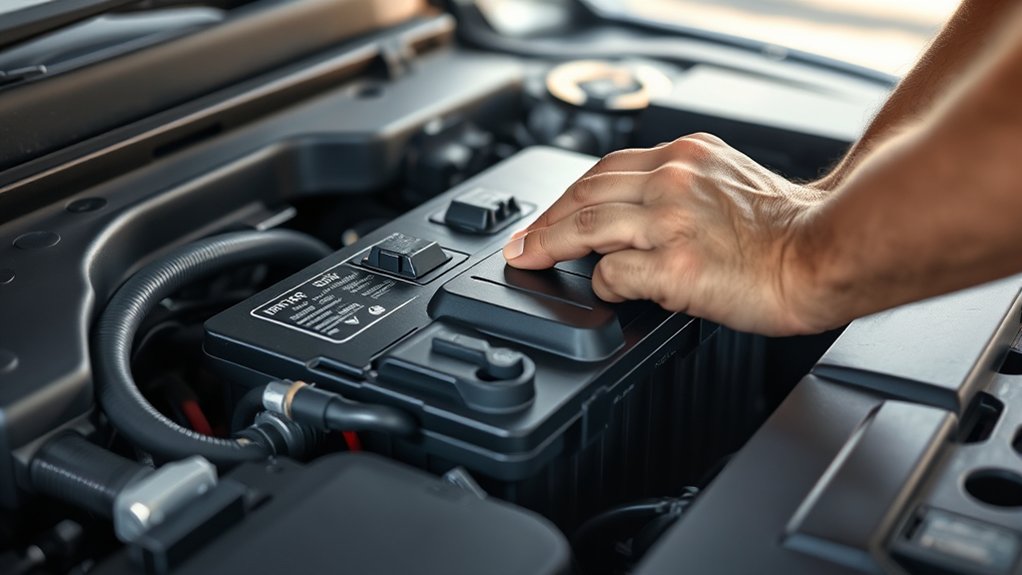
If the power button reset doesn’t clear the fault, you can reset the Ford Explorer screen by disconnecting the battery. Turn the ignition off, remove the key, and wait several minutes for modules to shut down.
Open the hood, then use a wrench to disconnect the negative battery cable first, followed by the positive if needed. This disconnect power step forces a full reset battery cycle and can clear temporary software errors.
Leave the battery isolated for 10 to 15 minutes, then reconnect the positive cable, followed by the negative. Tighten both terminals securely.
Start the vehicle and verify the screen boots normally. If the display still misbehaves, the issue likely needs diagnostic inspection.
Fix a Blank Ford Explorer Screen
A blank Ford Explorer screen usually points to a power, fuse, or module communication issue rather than a display setting. Start with a hard electrical check before you assume a failed unit. Inspect the cabin fuse panel, verify the radio and accessory fuses, and confirm battery voltage is stable.
A blank Ford Explorer screen usually signals a power, fuse, or module communication problem, not a display setting.
Then check these items:
- Key position: make sure the ignition is in RUN.
- Fuse condition: replace any open fuse with the correct rating.
- Connector fit: inspect the display and APIM plugs for looseness.
- Ground path: look for corrosion or damage at the chassis ground.
If the screen stays black, note any audio output or warning chimes. That helps isolate a backlight fault, head unit fault, or network fault.
Update SYNC and Restart Your Explorer
Next, update SYNC and restart your Explorer to clear software glitches that can freeze the display. Connect to Wi-Fi or use a USB drive, then go to Settings, General, and Automatic Updates.
If SYNC finds an update, let it install fully; don’t shut off the vehicle during the process. After the update completes, perform an explorer restart by turning the ignition off, opening the driver door, and waiting two minutes.
This powers down SYNC modules and reloads the screen software. If the display stays unresponsive, repeat the update sync check and confirm the system version matches Ford’s latest release.
A successful update often restores touch response, audio prompts, and navigation functions without further resets.
Prevent Ford Explorer Screen Problems
Keep your SYNC software updated so you can reduce bugs and maintain stable screen performance. Avoid power interruptions during updates or system restarts, since voltage loss can corrupt settings or freeze the display.
Clean the screen regularly with a soft, nonabrasive cloth to prevent buildup that can affect touch response.
Keep Software Updated
Software updates often fix glitches that can cause the Ford Explorer screen to freeze, lag, or reboot unexpectedly. You should check for system releases regularly and update firmware when Ford publishes an approved version. Keeping the infotainment software current helps preserve app compatibility, touch response, and navigation stability.
After each update, verify screen calibration so touch targets align correctly.
- Open the settings menu.
- Check the software version.
- Install available updates.
- Confirm normal screen operation.
If the screen still behaves erratically, review the update notes for known issues and repeat the calibration process. You’ll reduce recurring faults by maintaining current software and verifying settings after every major revision.
Avoid Power Interruptions
Avoid sudden power loss during startup, shutdown, or maintenance, since voltage drops can freeze the Ford Explorer screen or corrupt infotainment data. Keep the engine running, or use a stable battery charger when you must update software, reset settings, or test components.
Don’t disconnect the battery unless the procedure requires it, and wait for all systems to power down before turning the vehicle off. If you notice dimming, flicker, or a delayed boot, inspect battery health and charging output immediately.
Stable voltage helps preserve screen calibration, protect memory files, and maintain touch responsiveness. After any repair that interrupts power, verify that the display responds correctly and that stored preferences remain intact.
Consistent electrical supply reduces reboot errors and prevents avoidable infotainment faults.
Clean Screen Regularly
Dust and fingerprints can interfere with touch response and make the Ford Explorer screen harder to read, so clean it regularly with a soft, dry microfiber cloth. Use regular maintenance to keep the display responsive and reduce wear from abrasive debris.
Never spray cleaner directly on the unit; apply it to the cloth first. Avoid ammonia, alcohol, and strong solvents, which can damage the anti-glare coating and shorten screen life.
- Power off the screen.
- Wipe in straight, light strokes.
- Remove residue from edges and corners.
- Inspect for smudges before restarting.
This clean screen routine helps prevent false touches, preserves visibility, and supports reliable operation during daily driving. Keep the cloth in the cabin so you can clean it before buildup affects performance.
Frequently Asked Questions
How Do I Reset Ford Explorer Screen Settings to Factory Defaults?
You can factory reset the screen in Settings. Tap General, then Master Reset or Factory reset, confirm, and wait for the reset procedure to finish.
This restores default settings and erases stored preferences.
Will Resetting Erase My Saved Navigation Favorites?
Resetting can erase favorites, like clearing a cluttered desk; you’ll likely lose saved navigation and paired Bluetooth devices when you return to factory defaults.
Check backup options first, then prioritize driving safety before you reset navigation.
Can I Reset the Screen While Driving Safely?
No, you shouldn’t reset it while driving; you risk distraction and possible legal driving considerations.
Park safely first, then how to safely reset the screen through Settings or a soft reboot after you stop.
How Long Does a Full Screen Reset Usually Take?
Usually, you’ll wait about 5–10 minutes, like rebooting a stubborn laptop. Your reset duration depends on the model, but a full reset typically restores factory defaults quickly.
Then it reboots and reinitializes system settings.
Does Screen Reset Affect Bluetooth Paired Devices?
Yes, a screen reset usually won’t erase your Bluetooth paired devices, though a full reboot can temporarily disconnect them.
If you’re asking does reboot impact Bluetooth, screen freezing? It may clear the issue without deleting pairings.
Conclusion
You can reset your Ford Explorer screen like hitting a circuit breaker: start with a quick soft reset. If the display stays frozen, try the SYNC reset or power button method. These steps often resolve common screen issues quickly.
If the screen still goes dark, disconnecting the battery can break the loop and restore function. Once it reboots, test audio, navigation, and climate controls to ensure everything is working properly.
Keep SYNC updated regularly, and you’ll help the system stay sharp, responsive, and ready for the road. Following these tips will make resetting your Ford Explorer screen a straightforward process.