How to Reset f150 Screen
As an Amazon Associate we earn from qualifying purchases.

If your F-150 screen acts up at the exact time you need it most, you can usually fix it with a reset. Resetting the F-150 screen is often a simple and effective way to resolve common issues.
Start with a soft reset by holding the audio power and seek-forward buttons for about 10 seconds until the display restarts. That won’t erase settings or paired devices.
If the issue returns, a power cycle or SYNC reset may be the next step. A few checks can tell you whether the problem runs deeper.
Key Takeaways
- Press and hold the audio power and seek-forward buttons for about 10 seconds until the F-150 screen restarts.
- For a SYNC reset, use steering wheel controls or hold voice command and seek-right buttons for about 10 seconds.
- Remove USB devices, turn ignition off, wait 60 seconds, then restart the vehicle if the screen stays frozen.
- Check for blank display, flickering, dead pixels, or boot loops, which may indicate a hardware issue.
- If resets and updates do not fix it, visit a Ford dealer for diagnosis, wiring checks, or module inspection.
Try a Soft Reset
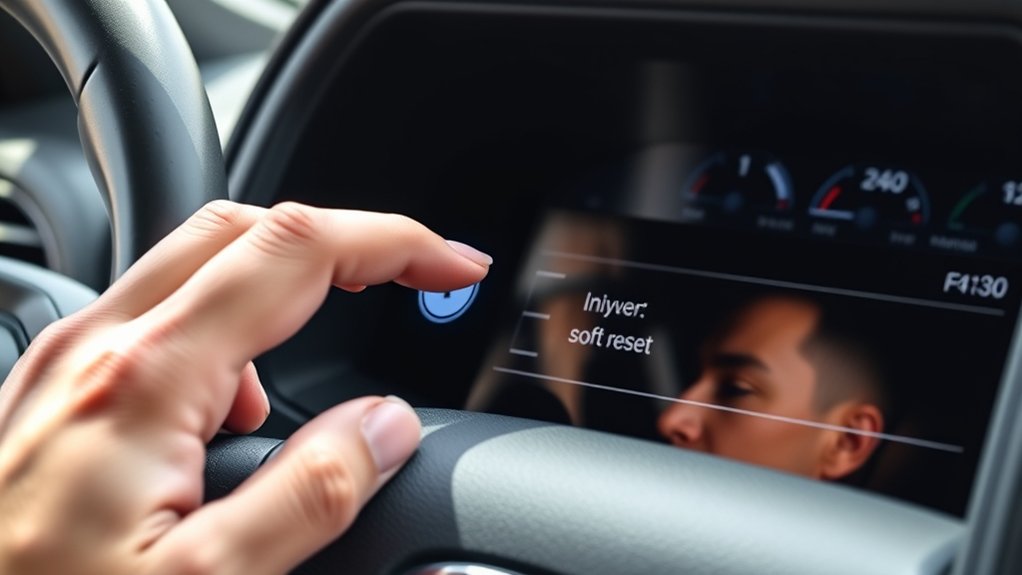
If your F-150 screen freezes, a soft reset is the quickest fix to try first. Press and hold the audio power and seek-forward buttons together for about 10 seconds until the display turns off and restarts.
This soft reset clears temporary software faults without erasing your settings, paired devices, or saved radio presets. Wait for the display reboot to finish, then verify the touchscreen responds normally.
If the system loads but remains sluggish, give it a few seconds before testing menus, audio, and navigation. You should use this step before any more involved troubleshooting because it isolates minor firmware glitches fast.
If the screen still locks up after the soft reset, the issue may need a deeper diagnostic procedure or dealer-level software service.
Power Cycle the F-150 Screen
To power cycle the F-150 screen, you’ll restart the display to clear temporary faults. First, follow the soft reset steps you used before, then turn the screen off and back on to reinitialize the system.
This process can restore normal response without changing your settings.
Restart The Display
When the F-150 screen freezes or stops responding, you can often clear the fault with a simple power cycle. Turn the vehicle off, wait for the display to shut down fully, then restart the display by powering the truck back on.
If the unit stays dark or lags, check whether the reset button is available on your trim and use it only as directed in the owner’s manual. A clean restart can also restore screen calibration after a temporary software glitch.
Don’t press multiple controls at once, and avoid interrupting power while the system is booting. If the display still misbehaves after restart, the issue likely isn’t a transient lockup, and you’ll need a more targeted diagnostic step.
Soft Reset Steps
A soft reset clears minor software faults by fully power-cycling the F-150 display. You should shut the truck off, open the driver door, and wait until the screen goes dark. Then, disconnect auxiliary power if your model allows it. Use these diagnostic tips to confirm the unit reboots cleanly.
- Turn the ignition off.
- Remove all USB devices.
- Wait 60 seconds.
- Restart the vehicle and verify responsiveness.
If the screen stays frozen, check user permissions for any connected profile or app restrictions. A complete power cycle often restores touch input, audio prompts, and menu access without affecting saved settings. If symptoms return, document the fault and move to deeper troubleshooting.
Reset Sync From the Steering Wheel
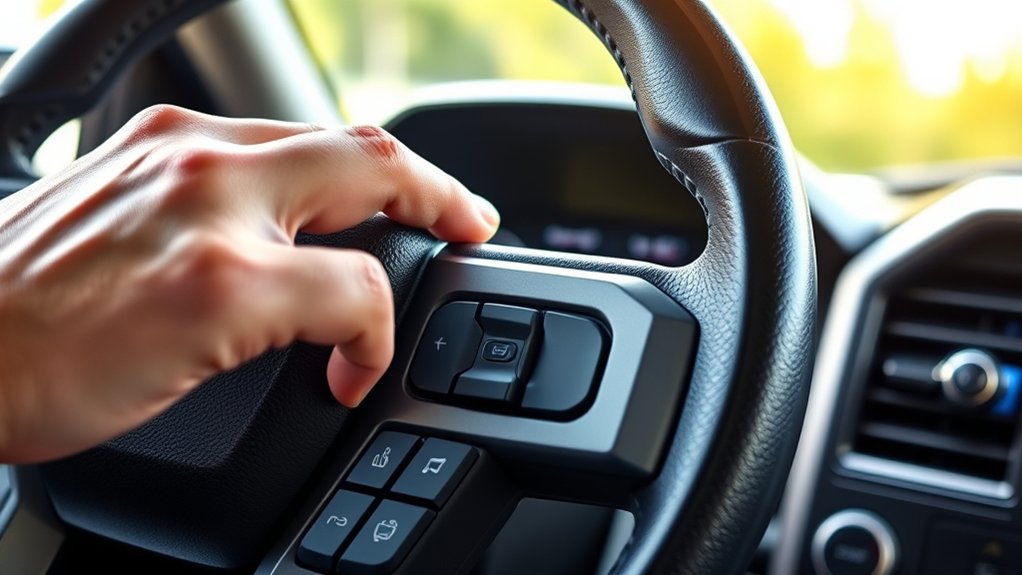
You can reset SYNC from the steering wheel by using the left-side controls to access the settings menu. Navigate to the system reset option, then select it and confirm the reset when prompted.
This method lets you restart SYNC without touching the touchscreen.
Steering Wheel Controls
The steering wheel controls give you a quick way to reset Sync without reaching for the touchscreen. Use the left-hand buttons to keep your eyes forward and your hands on the wheel. This helps when a car mount blocks part of the display or when navigation glare makes the screen hard to read.
Follow this logic:
- Press the voice button to wake Sync.
- Use the directional pad to highlight system options.
- Confirm with the OK button.
- Return to the home screen if the menu lags.
You’re controlling the interface, not changing vehicle settings. That makes the process safer and faster in bright light, traffic, or tight cabin layouts.
Sync Reset Steps
Need to reset Sync quickly from the steering wheel? Press and hold the voice command button and the seek right button together for about 10 seconds. Watch the display; when the system powers down and restarts, release both buttons.
If your F-150 uses a different module revision, check the owner’s manual for any variation in the reset sequence. After reboot, confirm audio, navigation, and Bluetooth pairings load correctly.
If Sync still hangs, repeat the reset once, then inspect for software updates through FordPass or USB. This method helps you clear minor glitches without disconnecting the battery.
Use it before deeper diagnostics, and compare results against other reset methods when you evaluate update ideas and feature comparison.
Check the Screen for Signs of Failure
If the F-150 screen still misbehaves after a reset, inspect it for visible failure signs such as a blank display, flickering, frozen graphics, unresponsive touch input, distorted colors, or repeated rebooting. You can separate a software issue from hardware damage by checking the panel closely under steady light.
Note whether battery health or screen calibration affects responsiveness, then watch for these indicators:
- Dead pixels or dark zones that stay fixed.
- Touch areas that miss taps or register late.
- Artifacts, lines, or color shifts across menus.
- Boot loops that return after the logo.
If you see any of these, the display likely needs deeper diagnostics. Don’t keep forcing resets; document the symptom pattern and move to the next check.
Check Fuses and Battery Power
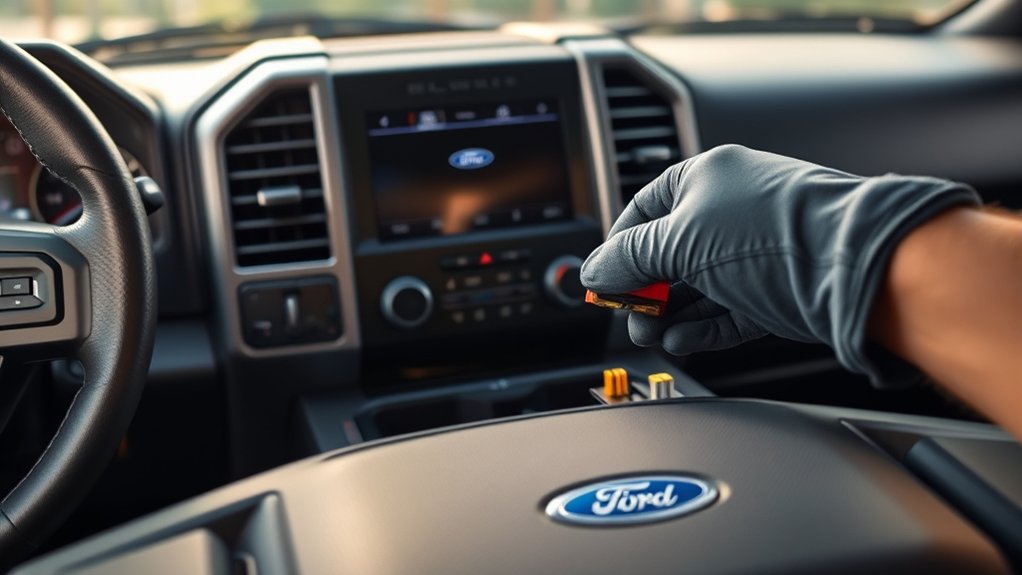
Next, check the fuses and battery power, because low voltage or a blown fuse can make the F-150 screen freeze, reboot, or stay blank. Use your owner’s manual to find the infotainment and accessory fuse locations, then inspect each fuse for a break or discoloration. Replace any damaged fuse with one that matches the specified amperage.
Then check battery voltage with a multimeter; you should see about 12.4 volts or higher with the engine off, and roughly 13.5 to 14.7 volts running. If the reading is low, charge or test the battery and charging system before you reset anything. Also verify the connections are clean and tight, since poor power delivery can mimic a screen fault.
Fix Touchscreen Lag and Freezes
When the screen lags or freezes, start by removing anything that can interfere with normal response. Disable nonessential features, close paired phones, and avoid rapid tapping. Then test the display with simple inputs and check whether climate controls respond normally.
If the screen still hesitates, restart the truck’s infotainment system and let it load fully before using it again.
- Reduce simultaneous inputs.
- Turn off unused accessories.
- Confirm climate controls react without delay.
- Recheck for freeze after a short drive.
If lag appears only during heavy use, keep interactions brief and allow the system to process each command. Consistent freezes point to a deeper fault, but you can often restore basic responsiveness by simplifying the load and retesting the screen in a clean state.
Update Sync and System Software
Check for SYNC and software updates, since outdated firmware can cause slow response, glitches, or repeated freezes. You can update sync through Wi-Fi or a USB drive, depending on your F-150’s model year and available features.
Check for SYNC and software updates, since outdated firmware can cause slow response, glitches, or repeated freezes.
In the SYNC menu, open Settings, then Software Updates, and confirm the current version. If an update’s available, follow the prompts and keep the ignition on until it completes.
Don’t disconnect power or remove the USB device during installation. Afterward, restart the system and verify that the screen responds normally.
If the issue continues, check for a second system software update from Ford’s official support page and repeat the process. Keeping both sync and system software current reduces bugs and improves touchscreen stability.
When to Visit a Ford Dealer
If your F-150 screen still freezes, stays black, or reboots after a reset and software update, a Ford dealer should inspect it. You’re likely facing hardware faults, module corruption, or wiring damage that simple resets won’t fix. Schedule a dealer visit when you see persistent reset issues, touch failure, audio loss, or warning messages tied to SYNC.
- Confirm the problem after a cold start.
- Note when the display fails and what apps trigger it.
- Check for other symptoms, like Bluetooth or camera dropouts.
- Ask the dealer to scan codes, test voltage, and verify module firmware.
A technician can isolate the fault faster than trial-and-error resets. That saves time, prevents deeper electrical damage, and gives you a correct repair path.
Frequently Asked Questions
Can I Reset the F-150 Screen Without Losing Saved Settings?
Yes, you can try reset methods that reboot the F-150 screen without erasing user preferences. Use a soft reset first; it usually preserves settings.
If that fails, a factory reset can clear stored data.
How Long Does a Full Screen Reset Usually Take?
You’ll usually spend 5 to 10 minutes on a full screen reset, including reboot and reinitialization. Timing varies by software version.
Battery impact is minimal, but keep the engine running or charger connected.
Will Resetting Fix Apple Carplay Connection Issues?
Yes, you might think a reset works miracles, but it’s not always enough. You’ll still need Apple CarPlay troubleshooting, because screen reset limitations can leave cable, phone, or software issues unresolved.
Does the Screen Reset Work on All F-150 Model Years?
No, you can’t assume the reset method works on every F-150 year; screen preservation varies by Sync generation, trim, and software.
You should verify your model’s procedure first, then reset carefully to avoid settings loss.
Can I Reset the Screen While Driving?
No you shouldn’t reset your F-150 screen while driving; that’s a neat way to test driving safety the hard way. Check screen reset legality too, then pull over, park, and reset it safely.
Conclusion
In short, you can usually reset your F-150 screen with a soft reset by holding the audio power and seek-forward buttons for about 10 seconds.
If the issue persists, try a power cycle, reset SYNC from the steering wheel, and check for power, fuses, or software updates.
Don’t ignore repeated freezes or blank screens. A stitch in time saves nine, so address symptoms early.
If the display still won’t recover, visit a Ford dealer to properly reset your F-150 screen and ensure everything is functioning correctly.