How to Connect Ford Pass
As an Amazon Associate we earn from qualifying purchases.
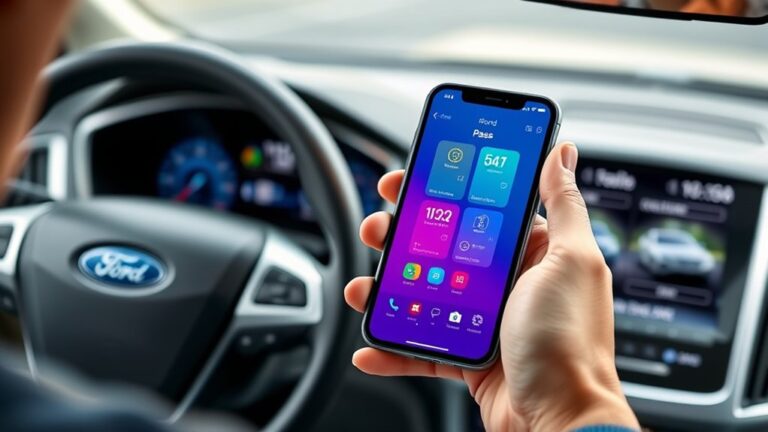
To connect FordPass, you need a compatible Ford vehicle, the latest software, and a phone with Bluetooth, location services, and a stable data connection. You’ll sign in or create an account, add your preferred dealer, and enter or scan your VIN in the app.
From there, the pairing steps guide you through ignition prompts and vehicle verification, but a few setup details can still block activation if you miss them. Following each step carefully ensures a smooth connection to FordPass.
Key Takeaways
- Confirm your Ford vehicle is compatible, updated, and has FordPass-supported infotainment, Bluetooth, and location services enabled.
- Create or sign in to your FordPass account using a verified email and secure password.
- Open FordPass, tap Add Vehicle, and enter or scan your VIN to start pairing.
- Follow the on-screen prompts near the vehicle, with the ignition set as instructed, until pairing is confirmed.
- After connecting, test remote features and troubleshoot any issues with Bluetooth, permissions, app, or network settings.
What You Need Before Connecting FordPass
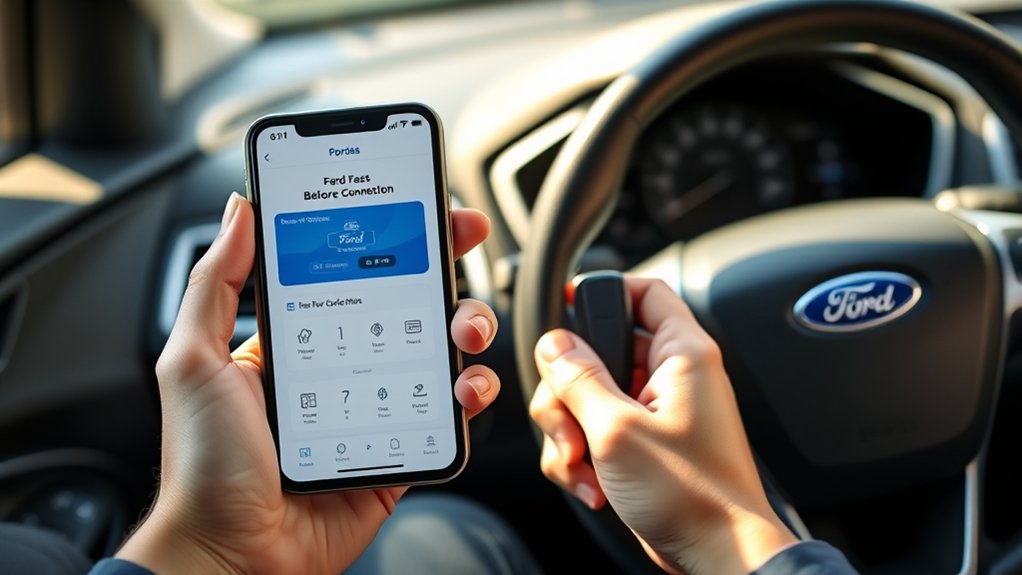
Before you connect FordPass, make sure you’ve got the essentials ready: a compatible Ford vehicle, a stable internet connection, and your Ford account credentials. You’ll also want your smartphone charged, since the app relies on real-time data exchange.
Have your Ford vehicle, internet connection, account details, and charged smartphone ready before connecting FordPass.
Check that your vehicle’s infotainment system supports FordPass features and that Bluetooth and location services are enabled. If you use wireless charging, verify the pad works properly so your phone stays powered during setup.
Review your vehicle’s software version, because outdated firmware can block pairing or remote commands. For eco friendly driving, confirm connected services like fuel monitoring and trip data are available, so you can track efficiency from day one.
Keep your VIN handy, too; it helps you identify the exact vehicle in FordPass.
Set Up Your FordPass Account
Now that you’ve got your vehicle details and account info ready, you can set up your FordPass account in just a few minutes. Open the FordPass app or visit the web portal, then select Sign Up. Enter your email, create a secure password, and verify your identity through the confirmation message.
Keep your profile data accurate, since Ford uses it to sync account access across devices. If prompted, add your preferred dealer and communication settings so alerts and service messages route correctly.
This step gives you a clean, centralized login for managing connected services. Use idea one to organize your credentials, and idea two to streamline your notification preferences. Once saved, your FordPass account is ready for the next setup stage.
Connect FordPass to Your Vehicle
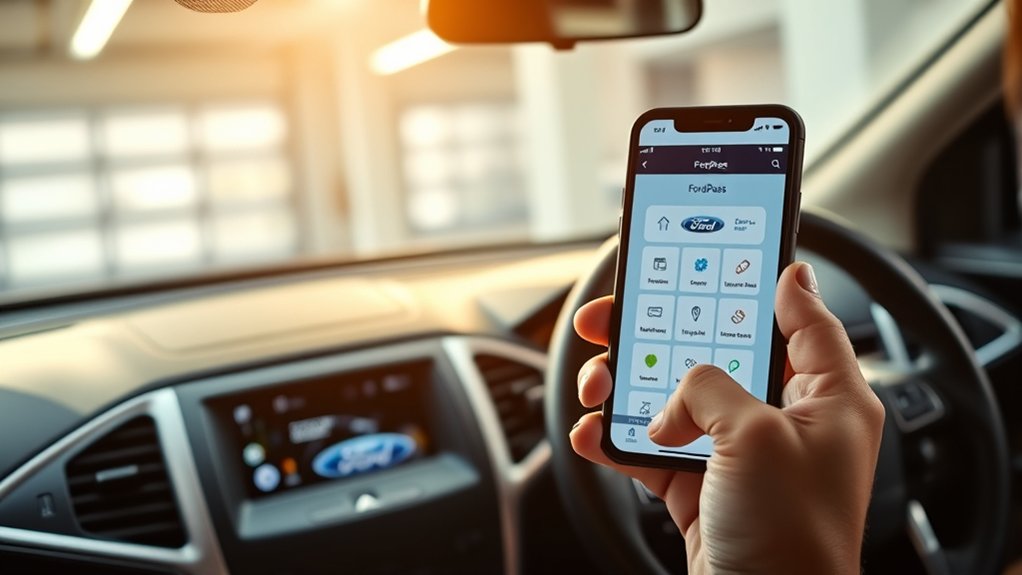
Next, link FordPass to your vehicle so the app can verify ownership and activate connected features. In the app, select Add Vehicle, then enter your VIN or scan it if your device supports that option.
FordPass checks the vehicle record and pairs it with your account. Follow the on-screen prompts to confirm details, then accept any permission requests your vehicle may require. If prompted, stay near the vehicle and make sure ignition settings match the instructions.
This step reflects idea one, because it establishes secure identity binding. It also supports idea two, because it prepares the system for reliable telematics sync.
Keep your connection stable, and recheck the VIN if the app returns an error.
Use FordPass Features After Setup
Once FordPass is linked to your vehicle, you can start using its connected tools to manage daily driving tasks from your phone. You can lock or unlock doors, check fuel or battery status, and locate your vehicle with real-time data.
Use remote start when your model supports it, and review trip details to track mileage and vehicle activity. You should customize alerts for maintenance, security, and vehicle status so you stay informed without constant manual checks.
Before sharing access, confirm disconnecting compatibility across devices and verify which features your trim supports. Keep privacy considerations in mind by limiting permissions, reviewing account settings, and signing out on shared phones.
With these controls, you get efficient oversight and a smoother connected ownership experience every day.
Fix FordPass Connection Problems
If FordPass won’t connect, start by checking the basics: confirm your phone has a stable data connection, Bluetooth is enabled, and the app has the required permissions for location, notifications, and vehicle access. Then, focus on sync faults, not unrelated topic or random chatter. Try these steps:
Check your connection, permissions, and Bluetooth first; FordPass sync issues often start with simple setup problems.
- Force-close FordPass and reopen it.
- Power-cycle your phone and the vehicle’s infotainment system.
- Verify your Ford account, VIN, and paired device match.
- Update FordPass, then remove and re-add the vehicle.
If the issue persists, clear the app cache, reset network settings, and check for server outages. You should also confirm your vehicle’s modem is active and subscriptions haven’t lapsed. Consistent failures usually point to pairing, permissions, or connectivity misconfiguration.
Frequently Asked Questions
Can Fordpass Connect to Multiple Ford Vehicles?
Yes, you can link multiple Ford vehicles to FordPass, and you’ll manage them from one account. Check customer support for eligibility details, and review data privacy settings so you control each vehicle’s connected data.
Does Fordpass Work With Older Ford Models?
Yes, FordPass can work with some older Ford models, but you’ll face older model limitations and app compatibility differences. You should check your vehicle’s year, trim, and modem support to confirm features before connecting.
Can I Use Fordpass Without a Smartphone?
No, you can’t use FordPass fully without a smartphone; it’s the digital key to the dashboard. FordPass can work, but smartphones are required.
You can still manage multiple vehicles and guest drivers through dealership or web support.
Is Fordpass Available Outside the United States?
Yes, FordPass is available outside the United States in many countries, but you’ll need to verify local support.
You can manage guest drivers and some older Ford models, though features vary by region and vehicle.
Does Fordpass Support Guest Drivers?
Yes, you can add guest drivers, but you’ll want to manage privacy concerns and data sharing carefully. You control access, you track permissions, and you protect vehicle data while keeping shared driving convenient.
Conclusion
Once you’re connected, FordPass turns your driveway into a live dashboard, with your Ford responding at your fingertips like a car waking up to your touch. You can lock, unlock, check fuel, and track trips with confidence, while your phone stays in sync through Bluetooth and location services.
If anything slips, you’ll know the fix is usually simple. Set it up right, and you’ll drive with a sharper, smarter sense of control.
With FordPass, connecting your vehicle means staying effortlessly in command no matter where you are.