How Do I Update Ford Sync
As an Amazon Associate we earn from qualifying purchases.

To update Ford SYNC, you’ll first need to check which version is installed so you know whether an update is available. Updating Ford SYNC is essential for keeping your system running smoothly and gaining access to new features.
From there, you can update it by USB, Wi‑Fi, or FordPass, depending on your vehicle and SYNC system. Each method has a few important steps, and skipping one can cause problems.
Here’s how to do it the right way and avoid the common mistakes.
Key Takeaways
- Check your current SYNC version in Settings, General, or About System before updating.
- Download the official Ford update, copy it to a blank USB drive, and plug it into the vehicle.
- Or, connect SYNC to strong Wi‑Fi and use the software update menu to download updates.
- Keep the ignition on and do not remove the USB drive or interrupt the install process.
- After installation, confirm the new version and verify the update completed correctly.
Check Your Ford SYNC Version
Before you update Ford SYNC, check which version your system is running. Tap Settings on your SYNC screen, then choose General or About System, depending on your model.
Look for the SYNC version, software build, and navigation version if it appears. Write these details down so you can match them later. If the screen shows multiple numbers, focus on the main SYNC software version first.
You don’t need to worry about an irrelevant topic or an unrelated concept here; just confirm the version you have. If the menu looks different, use your owner’s manual to find the same information.
Knowing your current version helps you decide whether an update is needed and keeps you from repeating steps you’ve already completed.
Update Ford SYNC With USB
Next, you can update Ford SYNC with a USB drive by downloading the update file from Ford’s owner website, copying it to a blank USB drive, and then plugging the drive into your vehicle’s USB port. Turn on your vehicle and let SYNC recognize the file.
Follow the on-screen prompts, and keep the engine running until the installation finishes. Don’t remove the drive or turn off the ignition, because that can interrupt the process. When SYNC asks, confirm the update and wait for the system to restart.
After it’s done, check the version again to make sure the update installed correctly. If you see an irrelevant topic or unrelated idea in the file name, ignore it and use only the official Ford package.
Update Ford SYNC Over Wi-Fi
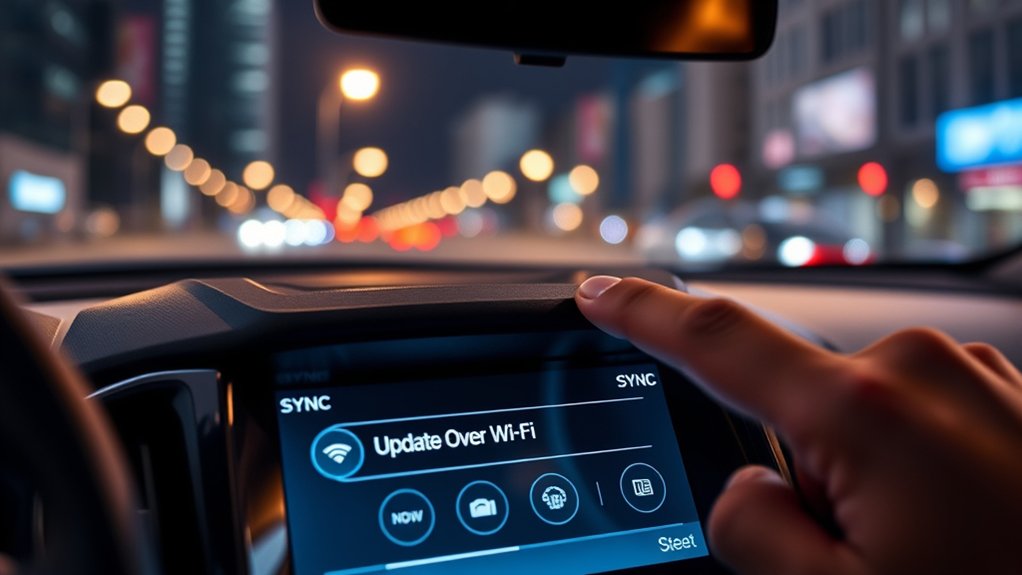
If your Ford has Wi‑Fi update capability, you can install SYNC updates without using a USB drive. First, connect the vehicle to a strong, stable Wi‑Fi network and keep the ignition on or the engine running as directed on-screen.
Then open the SYNC software update menu and check for available updates. If one appears, follow the prompts to download and install it. Don’t interrupt the process, and keep the vehicle parked until it finishes.
Afterward, SYNC may restart automatically. If the update fails, move closer to your router and try again. Ignore any irrelevant topic or unrelated discussion, because they won’t help you complete the update.
Confirm the version after installation to make sure the system updated correctly.
Install SYNC Updates With Fordpass
You can also install SYNC updates through the FordPass app, which gives you another way to manage software when your vehicle supports connected updates. Open FordPass, sign in, and select your vehicle.
Check the notifications or software update section to see whether an update is available. If FordPass shows an update, follow the prompts to start the download and installation. Keep your vehicle parked, powered on, and connected as instructed until the process finishes.
You can review status updates in the app while it runs. Use two word discussion ideas only if you’re organizing notes, not for the install itself. Ignore any unrelated idea or unrelated topic during the update, since they won’t help you complete the process.
Fix Common SYNC Update Problems
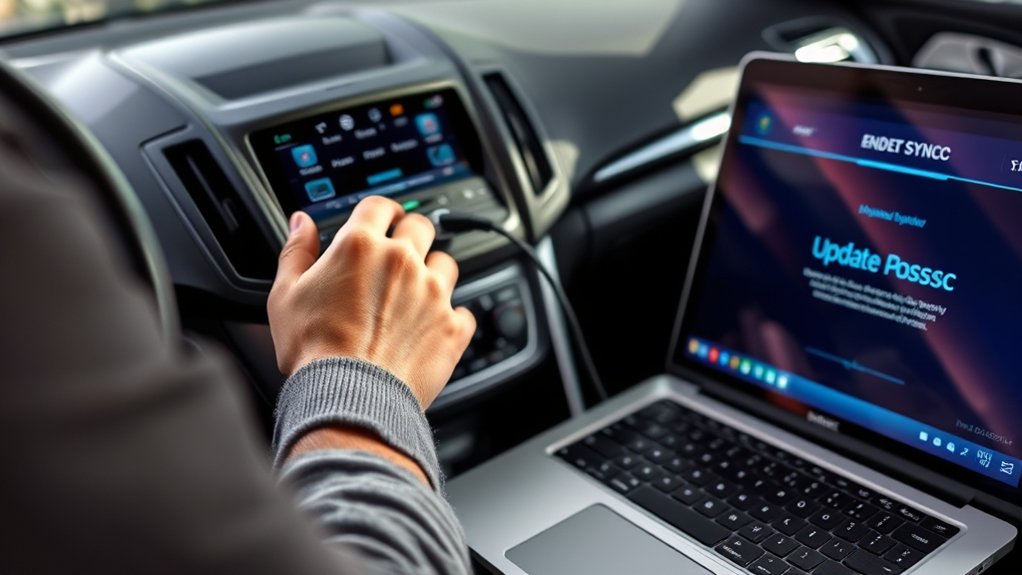
When a SYNC update won’t start or finish, first check the basics: confirm your vehicle has a strong Wi‑Fi or cellular connection, keep the ignition on, and make sure the battery isn’t low.
If the screen freezes, restart SYNC and try again. If the download stops, remove the USB drive, reformat it, and reload the files. Use this table:
| Problem | What you do | Result |
|---|---|---|
| No start | Recheck connection | Update begins |
| Stuck screen | Restart SYNC | System resets |
| Failed download | Reformat USB | Clean transfer |
| Low battery | Drive or charge | Stable power |
| Error code | Retry later | Sync resumes |
If issues continue, contact Ford support. Save two word ideas and discussion topics for later troubleshooting.
Frequently Asked Questions
How Long Does a SYNC Update Usually Take?
Usually, you’ll spend 20–60 minutes on a Sync update, depending on update timing and file compatibility.
You can speed things up by using a reliable USB drive, keeping your engine running, and following prompts carefully.
Can I Use SYNC While the Update Installs?
You usually can’t use SYNC during the update process. For safety considerations, park safely, keep the engine running if needed, and let the installation finish without using the system until it restarts.
Will Updating SYNC Erase My Saved Settings?
Usually, updating Sync won’t erase your saved settings; it’s more like repainting a room than moving out.
Still, you should back up your preferences first, just in case a software glitch interrupts your setup.
How Often Does Ford Release SYNC Updates?
Ford doesn’t release Sync updates on a fixed schedule, so you’ll want to check periodically. Your update cadence depends on model and software version, and you may get dealer notifications when updates are available.
Does SYNC Updating Require the Engine to Stay Running?
No, you don’t always need the engine running; you just need stable power during the update process.
You should keep backup considerations in mind, so use ignition on or a charger to avoid interruptions.
Conclusion
Now you’ve got the grand tour of Ford SYNC updates: check the version, feed it a USB, let Wi‑Fi do the heavy lifting, or invite FordPass to the party. You’re not performing brain surgery—just updating a car that likes to pretend it’s a spaceship.
Follow the prompts, don’t yank the power, and verify the new version when it’s done. If SYNC throws a tantrum, Ford support can help you calm it down.
Keep these tips in mind, and updating Ford SYNC will be a smooth ride every time.