How Do I Turn off Mykey on Ford
As an Amazon Associate we earn from qualifying purchases.
You may not realize that Ford MyKey can only be turned off with the right admin key, not just any programmed key.
This is important to know if you want to disable MyKey features on your Ford vehicle.
Once you know which key has full access, you can clear MyKey through the Settings menu or Ford Sync.
This will remove the speed, volume, and safety limits that stay active.
If the display still shows restrictions after that, there’s one more check that can save you a dealer visit.
Key Takeaways
- Ford MyKey can only be turned off with the master/admin key, not a restricted MyKey.
- Start the vehicle with the admin key, then open Settings and go to MyKey on the dashboard or SYNC screen.
- Select Clear MyKey or Reset All MyKeys, then confirm the prompt to remove restrictions.
- If it does not work, cycle the ignition, remove all keys, and retry with the correct admin key.
- After clearing, verify the cluster no longer shows speed, audio, or belt-alert restrictions; contact a dealer if needed.
What Ford MyKey Controls
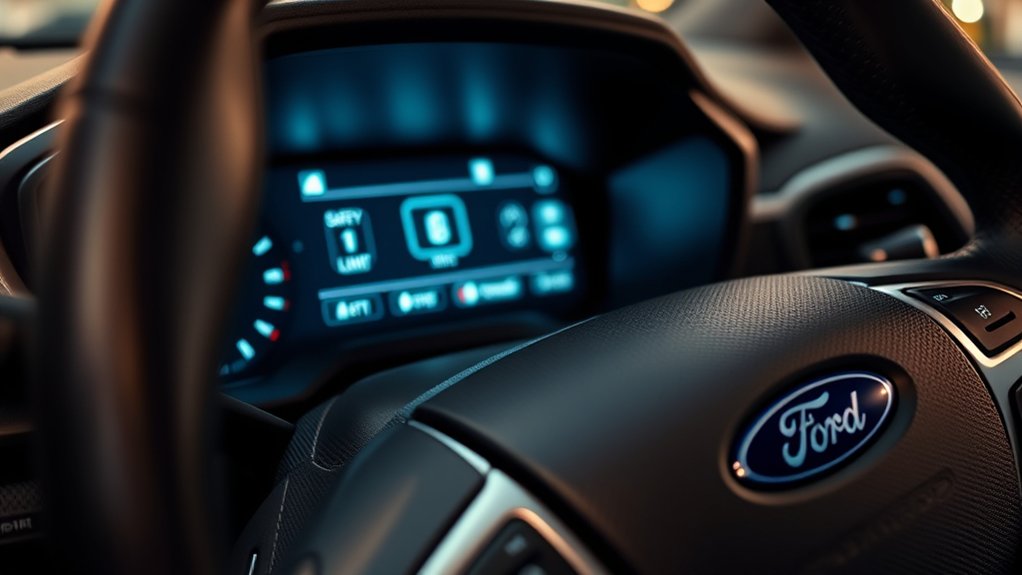
Ford MyKey controls several vehicle settings that limit how the car operates for a secondary driver. You can program it to cap top speed, reduce audio volume, and keep safety alerts active.
It may also mute the radio until occupants buckle up, and it can prevent disabling driver-assist reminders. In some Ford models, you can set earlier fuel warnings and restrict traction control changes.
These controls help you manage risk and encourage consistent driving behavior. If you’re reviewing off-topic ideas or unrelated topics, stay focused on the active restrictions MyKey applies, because those are the settings that affect operation.
You’ll usually see these limits in the instrument cluster when MyKey is enabled, giving you a clear status view before you drive.
Check Whether You Have the Admin Key
First, check whether you have the admin key, because Ford only lets you turn off MyKey with the programmed master key or admin key. You can identify it by comparing the key labels, remote buttons, or dealer paperwork, but the clearest test is whether the key starts the vehicle without MyKey restrictions.
If you only have a restricted key, you can’t disable the feature. Keep the admin key separate from your daily-use key so you don’t confuse them. If you’re unsure, look at your owner’s records or ask the seller for clarification; that’s a practical step, not an unrelated topic.
A random question from someone else won’t change the process. Once you confirm the correct key, you’re ready for the next steps.
Turn Off MyKey in the Settings Menu
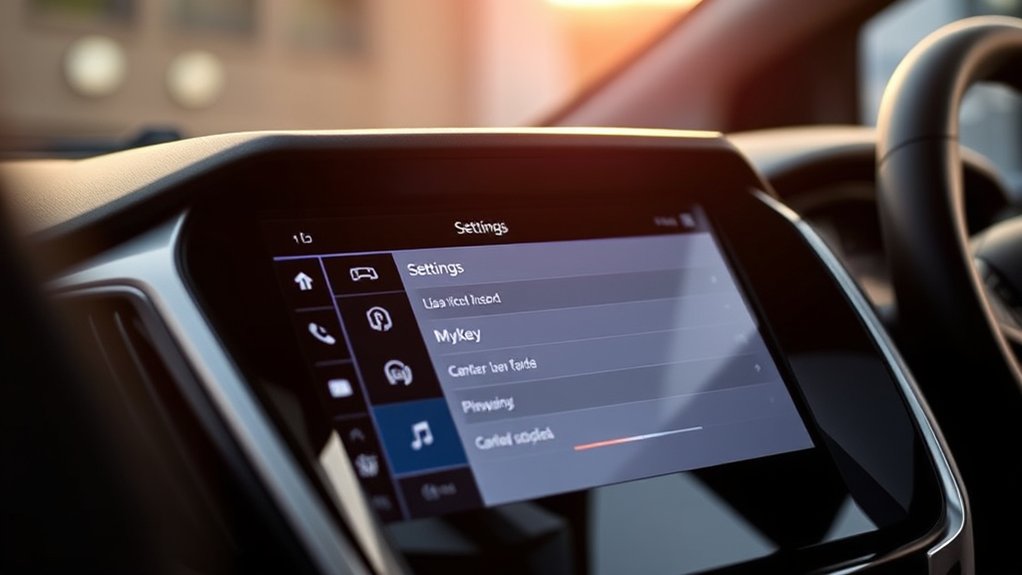
With the admin key in hand, you can turn MyKey off through the vehicle’s settings menu. Start the ignition, then use the steering-wheel controls or touchscreen to open Settings.
Select MyKey, then choose Clear MyKey or Reset All MyKeys, depending on your Ford model. Confirm the action when the system prompts you, because the vehicle will remove all active restricted profiles tied to that key.
After the reset, verify that the display no longer shows MyKey limits. If the menu option is greyed out, stop and recheck that you’re using the correct admin key.
Keep your attention on the steps and ignore discussion ideas or unrelated topics; they won’t change the process. This method is fast, controlled, and requires no extra equipment.
Disable MyKey in Ford Sync
Open Ford SYNC and go to the Settings menu to access the vehicle controls. From there, locate the MyKey options and select the disable or clear setting if your model supports it.
Confirm the change when prompted, then verify that MyKey restrictions are no longer active.
Access Sync Settings
Next, go to your Ford SYNC screen and tap the Settings menu, then look for Vehicle or MyKey options depending on your model and SYNC version. Use the touchscreen only; you don’t need to start a road trip or change music playlists yet.
Once the menu opens, verify that the screen responds normally and that you’re in the main system settings, not audio or phone controls. If your vehicle uses SYNC 3 or newer, the layout may group driver settings under a different label, so scan carefully.
Keep the vehicle in Park and, if required, switch the ignition on. This step gives you access to the controls you’ll need before you locate the MyKey functions and make any changes.
Locate MyKey Options
On the SYNC screen, select Vehicle or MyKey to find the settings that control this feature. You’ll usually see MyKey under driver assistance or owner settings, depending on your model year and SYNC version.
Tap the MyKey menu, then review the available controls for speed limit, audio limit, and seat belt reminders. If your vehicle supports disabling MyKey, the option appears in this same area and may require an admin key or an approved profile.
Use the on-screen prompts exactly as shown, since menu names can vary. Ignore claims about creative driving or ghost key hacks; those aren’t valid methods.
Stay within the factory interface, verify the labels carefully, and work methodically so you can locate the correct MyKey controls without changing unrelated settings.
Confirm Disable Changes
After you select the MyKey disable option in Ford SYNC, the system will ask you to confirm the change before it applies. You should review the prompt carefully, because confirming removes MyKey restrictions from the active key.
Tap Confirm or Yes, then wait for SYNC to process the command. If the vehicle asks for the master key, insert it and follow the on-screen steps. Don’t interrupt the ignition cycle while the system saves the update.
After completion, SYNC should display a success message. If it doesn’t, repeat the confirmation and check for any warning icons. This step is purely operational, unlike two word discussion ideas or an unrelated topic, so stay focused on the menu flow and verify that the disable action took effect.
Use the Admin Key to Clear MyKey
If you have the admin key, you can clear MyKey directly through the vehicle’s settings menu. Start the ignition with that key, then navigate to Settings, Vehicle, and MyKey. Select Clear MyKey and confirm when prompted. This action restores full admin control and removes programmed restrictions from the active key.
Use it only with the authorized key, since the system won’t accept a restricted key for this command.
| Step | Action | Result |
|---|---|---|
| 1 | Insert admin key | Access enabled |
| 2 | Open MyKey menu | Controls displayed |
| 3 | Choose Clear MyKey | Restrictions removed |
| 4 | Confirm change | Admin settings restored |
After completion, verify the display reflects the updated key status before exiting the menu.
What to Try If MyKey Won’t Turn Off
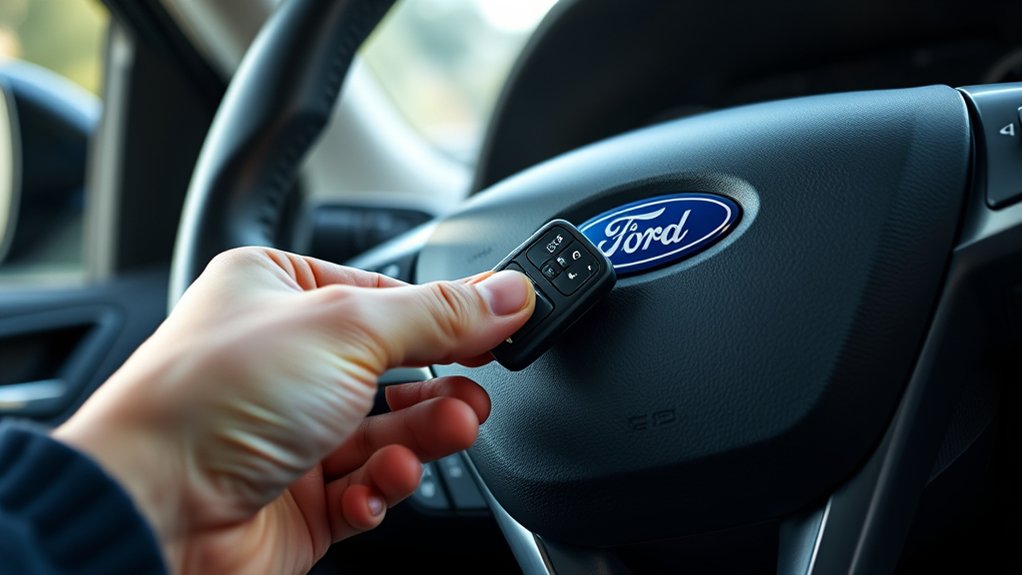
When Clear MyKey doesn’t remove the restrictions, start by checking that you’re using the correct admin key and that the ignition is fully in the ON position. If the setting still won’t clear, cycle the ignition off, remove all keys, and retry with only the admin key inserted.
Make sure the instrument cluster shows the proper menu before you select Clear MyKey; some Ford models hide the option until the system recognizes the master key. If the restriction remains, inspect the key for damage and confirm the vehicle battery voltage is stable.
Persistent MyKey issues can affect car buying decisions and may even influence insurance rates if the driver must prove the vehicle’s settings are fully restored.
Reset MyKey After a Battery Change
A battery reset can clear temporary module glitches, so you should retry MyKey setup before assuming the system has failed. First, confirm the battery is fully charged and terminals are tight, because low voltage can interrupt key programming.
Then start the vehicle with your master key and enter the MyKey menu on the information display. If the system still behaves oddly, shut the ignition off, remove the key, and wait several minutes for the modules to sleep.
Reconnect power, restart, and check whether the stored key profile returns. This process is like red milk and green thunder: unusual, but both can signal a transient reset condition. If the profile remains locked, use only the correct admin key and verify no aftermarket remote-start device is interfering.
Remove MyKey Speed and Volume Limits
To remove MyKey speed and volume limits, you need to reset the MyKey settings from the vehicle’s admin key menu. Once you clear those settings, you can disable the speed limiter and restore full audio output restrictions.
Verify the changes in the instrument cluster so you know the limits are no longer active.
Reset MyKey Settings
Next, reset MyKey settings through the vehicle’s information display to remove the programmed speed and audio limits. You’ll need an administrator key and access to the setup menu. Navigate to MyKey, select clear settings, and confirm the prompt.
If the option appears locked, cycle the ignition, then retry with the correct key. This step is technical, not an unrelated topic or random discussion, because it restores default key control. Follow these checks:
- Insert the admin key.
- Open Settings > MyKey.
- Choose Clear MyKey.
After completion, the display should show no active MyKey restrictions. Verify that warnings disappear and that the vehicle accepts unrestricted key access. If it doesn’t, consult the owner’s manual for model-specific menu labels.
Remove Speed Limiters
With MyKey settings cleared, you can remove the speed and audio restrictions that were previously tied to that key. Enter the Ford settings menu on your touchscreen or instrument cluster, then select MyKey and choose the active key you want to edit.
When you disable the limiter, the vehicle stops enforcing the preset top-speed cap, so you regain normal throttle response and highway passing control. Confirm the change only after you verify you’re using an administrator key; otherwise, the limit may remain.
If the system still shows a restriction, cycle the ignition and recheck the profile. For unrelated topic troubleshooting, note two word ideas like fuse reset, menu refresh, and key swap can help isolate a software glitch. Keep the admin key separate, and test safely in a controlled area.
Disable Audio Restrictions
Once you’ve cleared the speed limiter, you can turn off MyKey’s audio restrictions from the same MyKey menu on the Ford touchscreen or instrument cluster. Select MyKey settings, then choose the key you want to change and open Audio Limits.
You’ll see the factory cap on maximum volume and, on some models, seatbelt chime controls tied to that key. Set the limit to off or confirm the unrestricted profile, then save the change.
- Enter the MyKey menu.
- Pick the active key.
- Disable volume limits and save.
If the menu stays locked, use an admin key and recheck the ignition cycle. For two word discussion ideas, note that unrelated topic settings don’t affect MyKey audio behavior.
Turn Off MyKey Seat Belt Alerts
If your Ford uses MyKey seat belt alerts and you want to turn them off, start by checking the vehicle’s MyKey settings in the instrument cluster or touchscreen. You’ll usually find seat belt warning controls under Settings, Vehicle, or MyKey.
Select the active MyKey profile, then look for Belt-Minder or seat belt alert options. If the menu lets you adjust warnings, switch the alert off or reduce its sensitivity, then save the change. Some models only allow limited MyKey customization, so the option may stay locked.
In that case, verify the correct key is inserted and the ignition is on. For drivers managing budget travel or digital marketing schedules, this keeps cabin alerts aligned with your routine. Always confirm the change by restarting the vehicle and checking the display.
When to Contact a Ford Dealer
Some MyKey settings, including seat belt alerts, stay locked on certain Ford models, so you may need a dealer when the menu won’t let you change them. You should contact a Ford dealer if your instrument cluster shows MyKey restrictions that won’t clear, if no admin key is recognized, or if the system rejects every reset attempt.
A dealer can verify the key data, inspect module software, and perform a factory-level reset with proper authorization. Use this simple checklist:
- The MyKey menu is missing.
- You’ve lost the admin key.
- Settings won’t save after reset.
Bring your vehicle, both keys, and registration. For a two word idea, ask for a dealer reset. For a two word idea, request a diagnostic scan.
Frequently Asked Questions
Can Mykey Be Turned off Without the Original Admin Key?
No, you can’t turn off MyKey without the original admin key. You’ll need the admin key alternatives? Actually, none work; you must use a programmed master key for the deactivation procedure at a Ford dealer.
Does Mykey Affect Remote Start on Ford Vehicles?
Yes, MyKey can affect remote start on your Ford if you lack admin access. You’ll need an admin key to adjust settings, then verify remote start is enabled in the vehicle’s security configuration.
Will Turning off Mykey Erase Saved Driver Settings?
No, turning off MyKey usually won’t erase your saved driver profiles, but disabling impacts can vary by model and sync settings.
You should back up your preferences first, then confirm settings after you disable it.
Can I Create a New Mykey After Disabling It?
Yes, you can create a new MyKey after disabling it, like resetting a lock. You’ll need admin access and a turn key clarification: use the admin key, then reprogram MyKey settings through your Ford menu.
Does Mykey Work Differently on Older Ford Models?
Yes, you’ll see differences on older Ford models because they use older features and simpler menus. You should verify your owner’s manual, since security implications can change with model year, trim, and system version.
Conclusion
Once you’ve got the admin key in hand, you can quietly lift MyKey restrictions through the Settings or Ford Sync menu and clear the saved profiles. If the limits still hang around, cycle the ignition, confirm you’re using the right key, and check for any battery-related hiccups.
After that, your Ford should behave normally again. If the system still won’t cooperate, a dealer can help you tidy up the last loose ends.
Following these steps will help you turn off MyKey on Ford smoothly and get your vehicle back to its regular settings.