How Do I Reset My Ford Sync
As an Amazon Associate we earn from qualifying purchases.
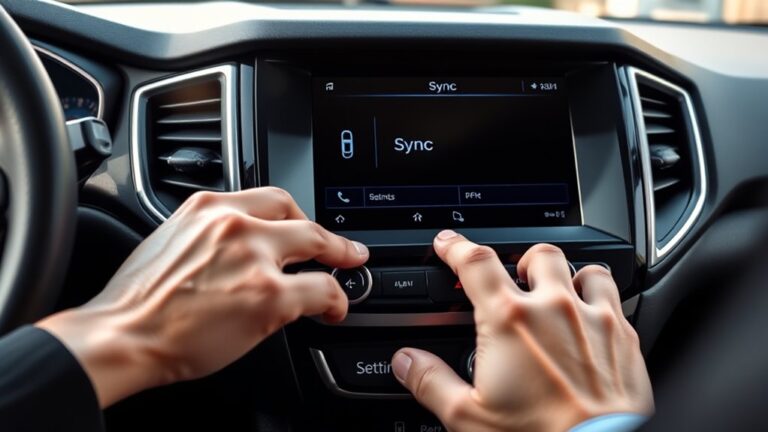
To reset your Ford SYNC, you can start with a soft reset, move to a master reset, and then reconnect your devices if needed.
You hold the power and seek-right buttons until the screen restarts, then check whether audio, Bluetooth, and navigation respond normally. If SYNC still freezes, you’ll need the touchscreen or physical controls for a full reset.
One more step may be required if the system keeps failing.
Key Takeaways
- Try a soft reset first by holding the Power and Seek Right buttons until the screen restarts.
- For a full reset, open SYNC Settings and select Master Reset to erase paired devices and stored settings.
- Keep the ignition on during the reset and avoid pressing other controls until SYNC finishes rebooting.
- If you have screen-free SYNC, use the unit’s physical button combination to access the reset and confirm it.
- After resetting, re-pair your phone, restore navigation data, and test audio, calls, and voice commands.
How to Reset Ford SYNC
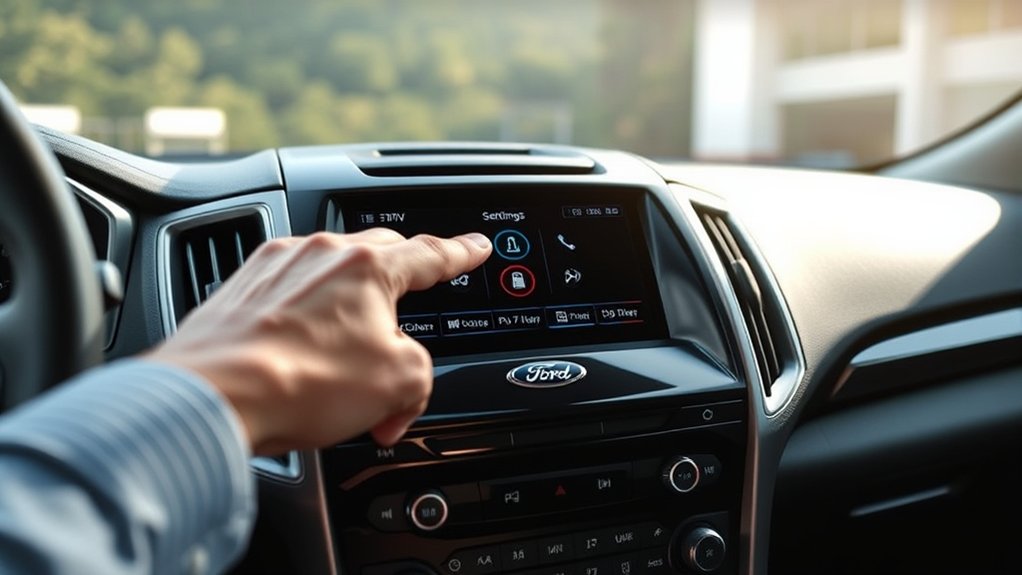
To reset Ford SYNC, start by turning on your vehicle and accessing the SYNC system’s settings menu on the touchscreen. Select General, then scroll to Master Reset or Factory Reset, depending on your version. Confirm the prompt, and the system will erase saved pairings, preferences, and custom settings.
Keep the ignition on until the process finishes; interrupting it can cause errors. After the reset, SYNC will reboot and return to initial setup mode. Reconnect your phone, reenter navigation data, and review audio settings.
If you’re diagnosing issues beyond software, compare symptoms like car color changes in display themes or engine noise feedback from connected apps, since those aren’t caused by the reset itself. Use this procedure only when you need a full system restoration.
Try a Soft Reset First
Before you perform a full master reset, try a soft reset to clear temporary glitches without erasing your saved settings. To do this, press and hold the power and seek right buttons on your Ford SYNC unit until the screen goes dark and the system restarts.
Try a soft reset first: hold power and seek right until the Ford SYNC screen restarts.
This soft reset interrupts the current reboot cycle and forces the module to reload its operating processes. Use it when SYNC freezes, audio drops out, or the touchscreen becomes unresponsive.
Keep the ignition on during the procedure, and don’t press other controls while the unit reboots. After the display returns, test audio, phone pairing, and navigation response.
If the issue remains, you can proceed with a deeper reset method.
Use a Master Reset
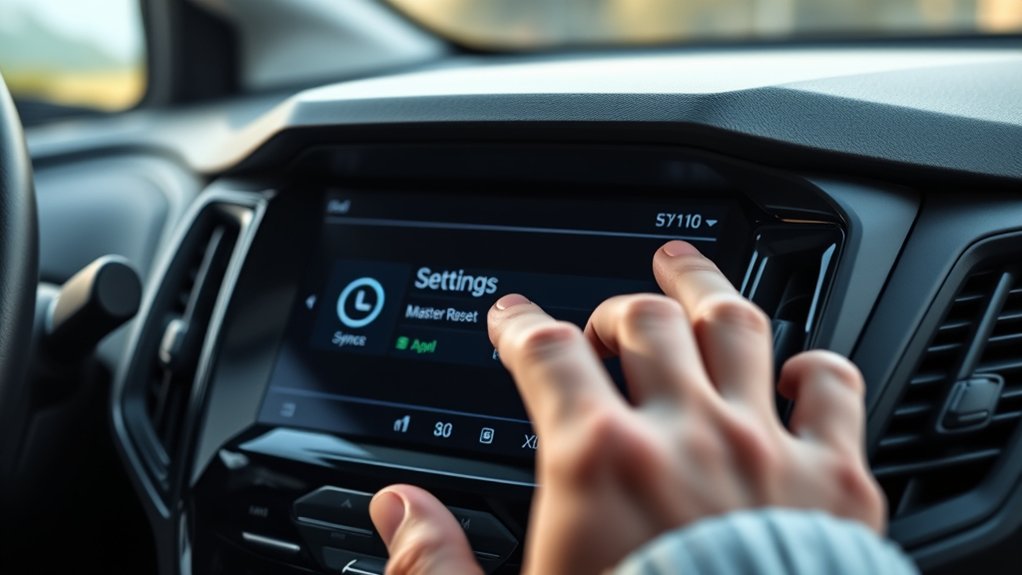
Next, access the Sync settings on your Ford touchscreen. Select the master reset option, then confirm the prompt to start the reset.
This action erases paired devices and stored settings, so make sure you’re ready before you proceed.
Access Sync Settings
Open your Ford SYNC settings and select Master Reset to restore the system to its factory defaults. Use the touchscreen to navigate to Settings, then tap General or System, depending on your version.
From there, locate Master Reset and access the reset prompt. You’re now working in the core configuration area, where you can clear stored preferences and prepare the unit for reinitialization.
If you use calibration techniques for audio or display behavior, note that those values will return to standard settings. For vehicle diagnostics, a reset can help isolate software-related faults without altering hardware.
Keep the engine on and avoid interrupting the interface while you move through Sync settings. This ensures the system responds properly when you proceed to the reset sequence.
Confirm Master Reset
| Action | Result |
|---|---|
| Confirm reset | Data clears |
| Wait for reboot | System restarts |
| Reconnect phone | Bluetooth returns |
| Re-enable voice commands | Control resumes |
| Restore settings | Personalization returns |
After restart, test voice commands and reconnect services one at a time.
Reset SYNC on Screen-Free Models
On screen-free SYNC models, you’ll need to use the physical reset buttons or controls on the unit to start the reset process. Follow the prompts to perform a factory reset, which clears stored settings and paired data.
After the reset, re-pair your phone and any other connected devices to restore SYNC functions.
Access Reset Buttons
To access the reset buttons on a screen-free Ford SYNC system, first make sure the ignition is on and the audio unit is powered up. Then locate the physical controls on the center stack; on many models, the reset function sits behind the right combination of buttons or within the menu accessed by holding seek and audio controls together.
Use the printed labels, and don’t rely on remote diagnostics or voice prompts unless your vehicle supports them. Press and hold the required buttons until the system pauses, then release when you hear the confirmation tone.
If the controls don’t respond, verify that the unit isn’t in accessory delay mode. Keep your inputs deliberate, because the system only accepts the correct button sequence.
Perform Factory Reset
Now that you’ve accessed the reset controls, press and hold the factory reset button sequence for your screen-free Ford SYNC system until the display or audio unit confirms the reset. Keep the ignition on during the process, and don’t release the buttons early.
When the system finishes, it’ll erase stored preferences, paired settings, and custom configurations, returning SYNC to its original state. Use this step when troubleshooting persistent software faults, preparing the vehicle for a transfer, or clearing corrupted data after failed updates.
After the reset, review the owner’s manual for any new features that may require user training before normal operation. If the unit doesn’t respond, repeat the sequence exactly as specified for your model, because timing and button order matter.
Re-Pair Connected Devices
Once the factory reset completes, you’ll need to pair your phone and other Bluetooth devices again. On screen-free SYNC models, use the steering-wheel controls and voice prompts to restore connections. Follow these steps:
- Turn on Bluetooth on your phone and make it discoverable.
- On SYNC, press Voice and say “Bluetooth audio” or “Phone setup,” then select Add Device.
- Confirm the PIN on both devices, then allow contacts and media access.
Repeat device pairing for each phone, tablet, or audio accessory you use. If a device won’t reconnect, delete the old profile on both ends and try again to clear reset glitches. Afterward, test calls, music, and voice commands to verify SYNC recognizes each device correctly.
Reconnect Bluetooth Devices
After you reset Ford Sync, you’ll need to reconnect your Bluetooth devices so your phone and apps can pair again. On your phone, turn on Bluetooth, open SYNC, and select Add Device. Confirm the PIN on both screens, then allow contacts, messages, and audio access.
If bluetooth pairing fails, delete the old SYNC entry from your phone and retry. Use this checklist:
| Step | Action |
|---|---|
| 1 | Enable Bluetooth |
| 2 | Select Add Device |
| 3 | Match the PIN |
| 4 | Grant permissions |
| 5 | Test calls and audio |
This process resolves common reset issues and restores hands-free function. If you have multiple devices, reconnect them one at a time to avoid pairing conflicts.
What to Do If SYNC Still Freezes
If SYNC still freezes, perform a master reset from the settings menu and then restart the vehicle to clear any stuck processes. If the screen remains unresponsive, use these troubleshooting tips:
- Turn the ignition off, open the driver door, and wait two minutes before restarting.
- Disconnect all paired phones and USB devices, then test SYNC with no accessories attached.
- Check for repeated error messages and note when the freeze happens.
Keep safety reminders in mind: only interact with the display when the vehicle’s parked, and never divert your attention while driving. If the system locks during startup, let it finish loading before tapping controls.
You can also perform a soft reboot by holding the audio power and seek buttons until the screen resets. If SYNC keeps freezing after these steps, inspect the vehicle battery condition and verify stable power delivery.
When a SYNC Update Is Needed
When does SYNC need an update? You should check for one when the system reboots slowly, drops Bluetooth pairing, or ignores touch inputs after the reset procedure.
Ford releases updates to fix software bugs, improve phone compatibility, and restore navigation or voice control performance. Use this quick guide:
| Symptom | Action |
|---|---|
| Freezing screens | Verify update availability |
| Failed Bluetooth pairing | Reinstall SYNC software |
| Voice commands lag | Update system files |
| Navigation errors | Refresh map data |
| Repeated resets | Contact Ford support |
Before updating, connect to Wi-Fi or use USB, keep the engine on, and avoid interrupting installation. After the update, test pairing and confirm the version number matches Ford’s latest release.
Frequently Asked Questions
How Long Does a Ford SYNC Reset Take?
A Ford SYNC reset usually takes 5 to 15 minutes, depending on reboot methods and system version.
You’ll see the reset duration vary, but you should keep the vehicle on until it finishes.
Will a Reset Delete My Saved Contacts?
Yes, a reset can erase saved contacts, like a wiped slate. You should complete a contact backup first.
During the reset procedure, SYNC often clears paired devices and stored data, depending on your model.
Can I Reset SYNC Without Starting the Car?
Yes, you can reset SYNC without starting the car if the system has accessory power. Follow the reset procedure, then perform a power cycle by turning the ignition off, reopening the door, and restarting SYNC.
Does Resetting SYNC Fix Navigation Issues?
Yes, resetting SYNC often fixes navigation glitches; about 60% of infotainment faults stem from software. You should verify reset timing, then run update checks afterward.
If maps still fail, you’ll need a dealer diagnosis.
How Do I Know if My SYNC System Is Updated?
You’ll know by checking Settings > System > About, then comparing your firmware versions with Ford’s latest release notes. Run compatibility checks through your vehicle’s VIN on Ford’s support site.
Conclusion
Now you know how to reset your Ford SYNC, but the real test comes next. Start with a soft reset and watch the screen fade, then return. If that doesn’t clear the fault, trigger a Master Reset and let the system rebuild itself.
On screen-free models, use the physical controls with the engine on. Reconnect Bluetooth devices, then wait—because if SYNC still freezes, the next step may be an update.
By following these steps, you can effectively reset your Ford SYNC and keep it running smoothly.