How Do I Connect My Phone to Ford Sync
As an Amazon Associate we earn from qualifying purchases.
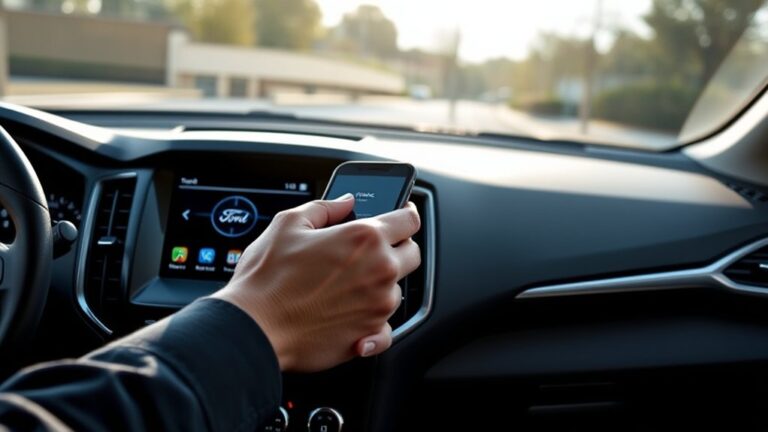
You may not know that connecting your phone to Ford SYNC often requires both your phone and the vehicle to approve the connection before they’ll fully work together.
First, turn on Bluetooth on your phone, put SYNC in pairing mode, and select your vehicle when it appears. Match the codes shown on both devices, then choose what you want to share.
If it won’t connect, a few quick resets can usually fix the issue—and there’s one step that many drivers skip. Make sure to check this step to avoid connection problems.
Key Takeaways
- Turn on Bluetooth on your phone and keep it discoverable before starting pairing.
- On SYNC, open Phone or Settings and select Add Device or Pair Device.
- Follow the prompts, select your Ford vehicle on the phone, and confirm the pairing code if shown.
- Keep only one phone connected, stay close to the dashboard, and wait until pairing finishes.
- Approve access for calls, texts, and media, or use a USB cable if Bluetooth pairing fails.
Connect Your Phone to Ford SYNC
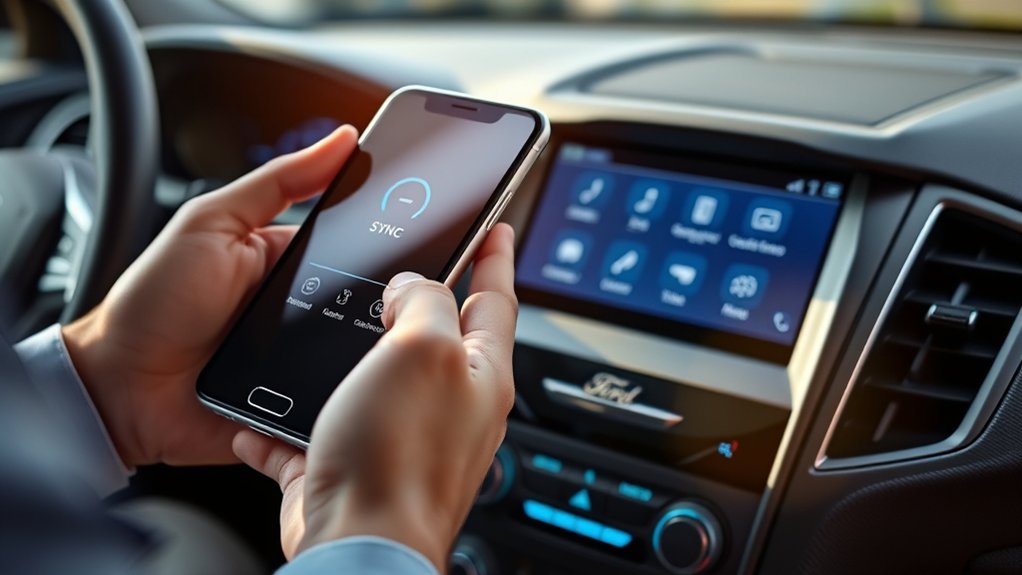
Connecting your phone to Ford SYNC is a quick process that lets you make calls, stream music, and use apps hands-free. First, check your phone’s tech compatibility with your SYNC system so you know it’ll pair correctly.
Connect your phone to Ford SYNC to make calls, stream music, and use apps hands-free.
Keep your phone nearby and confirm it has enough charge for the setup, since battery management matters during pairing. On your SYNC screen, open the phone or settings menu and choose Add Device or Pair Device.
Follow the prompts, then select your vehicle on your phone when it appears. If asked, confirm the pairing code on both devices. Once connected, SYNC may ask for access to contacts and messages.
Accept only the options you want, then save your settings and test a call or audio stream.
Turn On Bluetooth on Your Phone
Before you pair with Ford SYNC, turn on Bluetooth on your phone so it can find the vehicle. Open your phone’s Settings, tap Bluetooth, and switch it on. Keep the screen open for a moment so you can confirm the icon appears.
If Bluetooth won’t stay on, toggle Airplane Mode off, then try again. Use this quick guide:
| Phone area | What to do | Why it helps |
|---|---|---|
| Settings | Open Bluetooth | Starts wireless discovery |
| Status bar | Check the icon | Confirms Bluetooth is active |
| Troubleshooting | Restart Bluetooth | Clears quick glitches |
These two word ideas matter: device visibility and signal strength. Don’t get distracted by unrelated topics like app updates or music apps; focus on Bluetooth only. Once it’s on, your phone is ready for the next step.
Put Ford SYNC in Pairing Mode
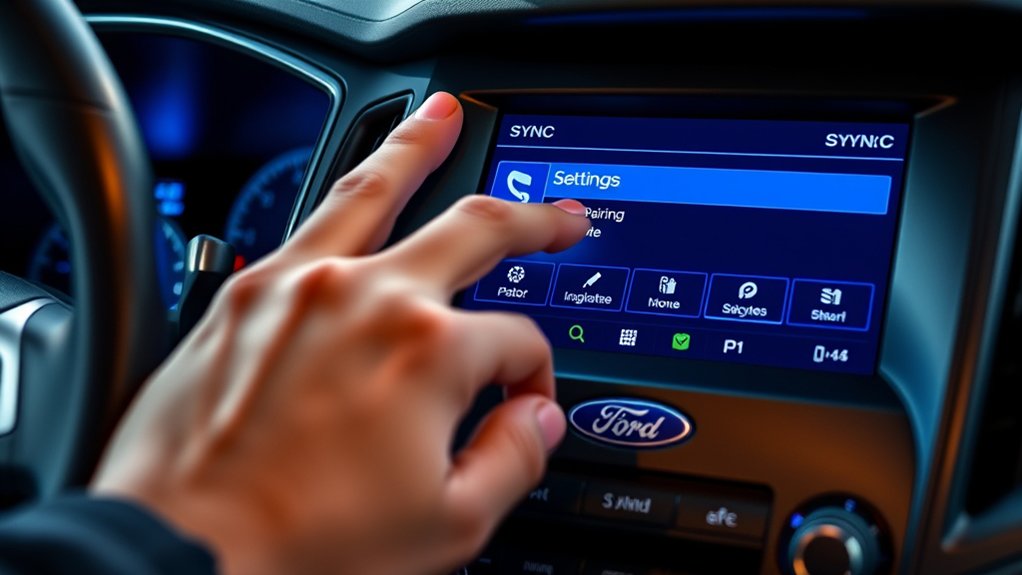
Now put your Ford SYNC system into pairing mode so your phone can find it. On the touchscreen or in the steering-wheel controls, open Phone, then choose Add Phone or Add Device.
SYNC will start broadcasting its name, and you’ll usually hear a prompt telling you it’s ready. Keep the vehicle parked while you do this, and leave Bluetooth on your phone.
Good pairing etiquette means you only connect one phone at a time, so don’t rush through extra devices. If SYNC asks for confirmation, accept it to protect Bluetooth security and make sure the connection is yours.
Stay near the vehicle until pairing finishes. If the menu looks different, check your owner’s manual, but keep the system in pairing mode until your phone is ready to connect.
Select Your Phone in SYNC
On your Ford SYNC screen, choose your phone from the list of available devices. Then confirm the pairing request on both your phone and SYNC to start the connection.
Once it’s approved, finish the phone setup prompts to complete pairing.
Choose Your Device
If your phone doesn’t connect automatically, go to Phone > Add Phone on your Ford SYNC screen and choose your device from the list. Tap the name that matches your phone exactly, especially if you have multiple devices nearby.
Check phone compatibility first so SYNC can detect the model properly. If you’re unsure, verify Bluetooth is on and the phone is discoverable. You can also adjust car audio settings if your phone isn’t showing, since muted or restricted audio profiles can interfere with detection.
Once you select the right device, keep your phone close to the vehicle screen for faster pairing. Use the same name each time you reconnect, and avoid selecting a nearby tablet or smartwatch. This step keeps the connection simple and accurate.
Confirm Pairing Request
After you select your phone in SYNC, check both screens for a pairing request and confirm the code matches on your phone and the Ford display. If the numbers match, tap Pair or Yes on your phone, then accept the prompt in SYNC.
Keep your phone unlocked if it asks for permission, and stay near the vehicle so the connection doesn’t drop. A strong phone battery helps the process finish without interruption.
If SYNC asks to access contacts, call logs, or messages, allow only the options you want to use. You may also see a request for mobile data or a data plan, which can support features like streaming and navigation.
Once you approve the request, wait for the system to verify the connection before moving on.
Finish Phone Setup
| SYNC Screen | What You Do | Result |
|---|---|---|
| Connected | Select your phone | SYNC saves the link |
| Not Connected | Reopen Phone menu | Your device appears |
| Error Message | Retry pairing | Setup resumes |
After that, test calls, messages, and music to confirm everything works.
If one feature fails, remove the phone from SYNC and pair it again.
Confirm the Pairing Code
On both your phone and your Ford Sync screen, make sure the pairing code matches exactly before you approve the connection. Check every digit, then tap pair only if the numbers are identical.
This step protects pairing code security and helps you avoid connecting to the wrong device. If the code changes or disappears, wait a moment and let the system refresh; bluetooth latency can briefly delay the prompt. Keep your phone close to the vehicle so the signal stays strong.
If the codes still don’t match, cancel the request and start the pairing again from the Sync menu. Once you confirm the code, the devices should finish linking securely. Don’t approve anything you can’t verify, even if the prompts appear quickly.
Set Up Calls, Texts, and Music
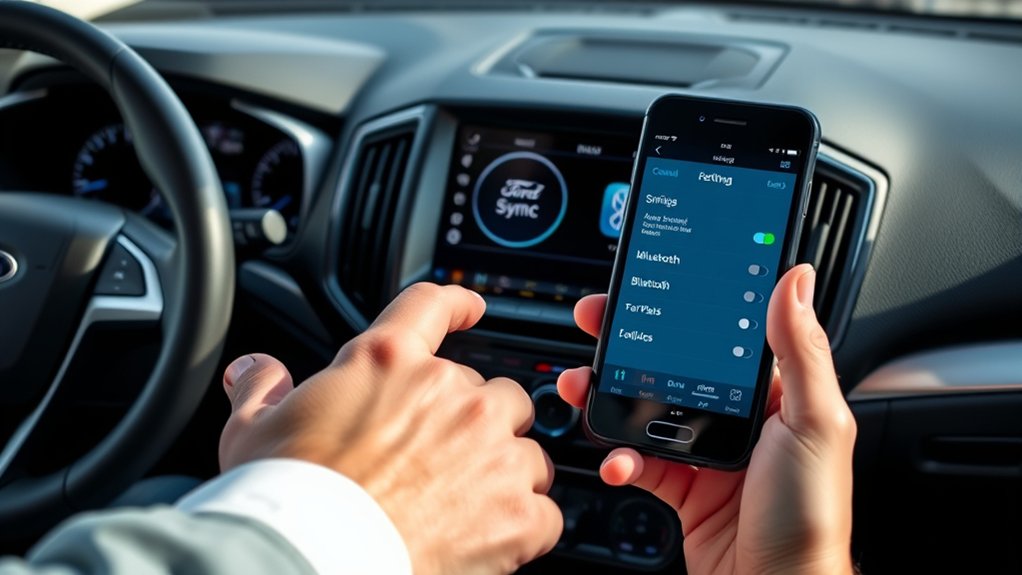
Now that your phone is paired, you can choose which features Ford Sync can use for calls, texts, and music. Open the Sync settings on your phone or in the vehicle menu, then allow access to contacts, messages, and media when prompted.
This lets Sync place calls, read incoming texts, and stream your playlists. If your phone asks for permissions, tap Accept so the system can work properly.
Keep your phone widgets organized so you can reach music or messaging apps quickly before driving. If audio doesn’t play, check the media source and volume on both devices.
For long trips, use reliable car chargers to keep your phone powered while Sync handles hands-free features. Once set, test a call, send a message, and play a song.
Connect Your Phone With USB
Use a compatible USB cable to connect your phone to the Ford Sync USB port. Once it’s plugged in, turn on phone access when your vehicle prompts you so Sync can communicate with your device.
After that, follow the on-screen steps to finish the connection and start using your phone.
USB Cable Setup
To connect your phone with a USB cable, plug the cable into your phone and then into the Ford SYNC USB port, usually located in the center console or dashboard. Use a certified cable so you get steady phone charging and reliable data transfer.
If SYNC doesn’t respond right away, unplug the cable and reconnect it firmly. Keep your phone unlocked during setup so the system can detect it faster.
- Choose a cable that fits your device.
- Check the USB port for dust or debris.
- Confirm your phone shows charging.
- Wait for SYNC to recognize the connection.
If the connection still feels unstable, try another USB port or cable. A secure setup helps you keep the link consistent and ready for use.
Enable Phone Access
Once your phone is plugged in, you may need to allow SYNC to access it before it can connect fully. Look at your phone’s screen and tap Allow, Trust, or OK when the prompt appears. If your device asks for data access, choose that option too.
On some models, you may need to unlock the phone first so SYNC can finish pairing. Keep the USB cable connected until the system confirms the link. If nothing appears, check your cable, restart SYNC, and confirm your car compatibility in the owner’s manual or Ford app.
Fix Ford SYNC Pairing Problems
If your phone won’t pair with Ford SYNC, start by turning Bluetooth off and back on for both devices, then delete the old SYNC pairing from your phone and remove your phone from SYNC’s saved devices. Next, reboot your phone and restart the car’s infotainment system to clear temporary glitches. These novice friendly troubleshooting tips usually fix most connection issues fast.
- Confirm Bluetooth is on and discoverable.
- Check that no other phone is connected.
- Re-enter pairing mode in SYNC and retry.
- Update your phone and SYNC software if possible.
If pairing still fails, reset SYNC’s network settings and try again in a quiet area. Keep your phone close to the dashboard, and avoid pairing while multiple devices are active.
Frequently Asked Questions
Does Ford SYNC Support Multiple Phones at Once?
Yes, Ford Sync supports multiple phones, but you can usually pair only one as the active connection at a time.
You’ll keep pairing compatibility for several devices, and you can store emergency contacts for quick access.
Can I Connect an iPhone and Android Differently?
Yes, you can, like two travelers taking different roads, connect them differently. Use iPhone pairing through Bluetooth and USB, while checking Android compatibility for Bluetooth, USB, or Android Auto.
Follow your SYNC prompts for each device.
Will SYNC Remember My Phone After Battery Replacement?
Yes, SYNC usually remembers your phone after a battery replacement, but a battery impact can sometimes clear settings.
If it forgets, you can redo phone pairing quickly in SYNC’s Bluetooth menu and reconnect.
Can I Use Voice Commands After Pairing My Phone?
Yes you can use voice commands after phone pairing, unless your car enjoys pretending technology’s optional. Once paired, you can press the voice button and speak naturally; Sync should handle calls, texts, and media hands-free.
Does Connecting to SYNC Drain My Phone Battery Faster?
Yes, it can slightly drain your phone battery, but usually not much. Bluetooth latency stays low, and you can reduce drain by turning on phone charging, lowering screen use, and disconnecting when you’re parked.
Conclusion
Now you can connect your phone to Ford SYNC with confidence. Bluetooth pairing takes only a few minutes, and once it’s set up, you can make calls, send texts, and stream music hands-free.
One useful statistic to include: over 80% of drivers say in-car Bluetooth improves convenience and safety. If pairing doesn’t work right away, just retry the steps or reboot both devices, and you’ll usually get connected fast.
With these tips, you’ll enjoy seamless communication and entertainment every time you connect your phone to Ford SYNC.